The first time your canvas in Aviquill gets big — really big, hundreds of blocks spread across a workspace that scrolls for what feels like miles — something changes. Zooming and panning still work fine. What stops working is your sense of place. You lose the thread of where your notes about one project end and another begins. You scroll for a few seconds looking for something you swear was "off to the right somewhere" and never find it.
That's the exact problem the ruler was built to solve.
A ruler that knows where your content is
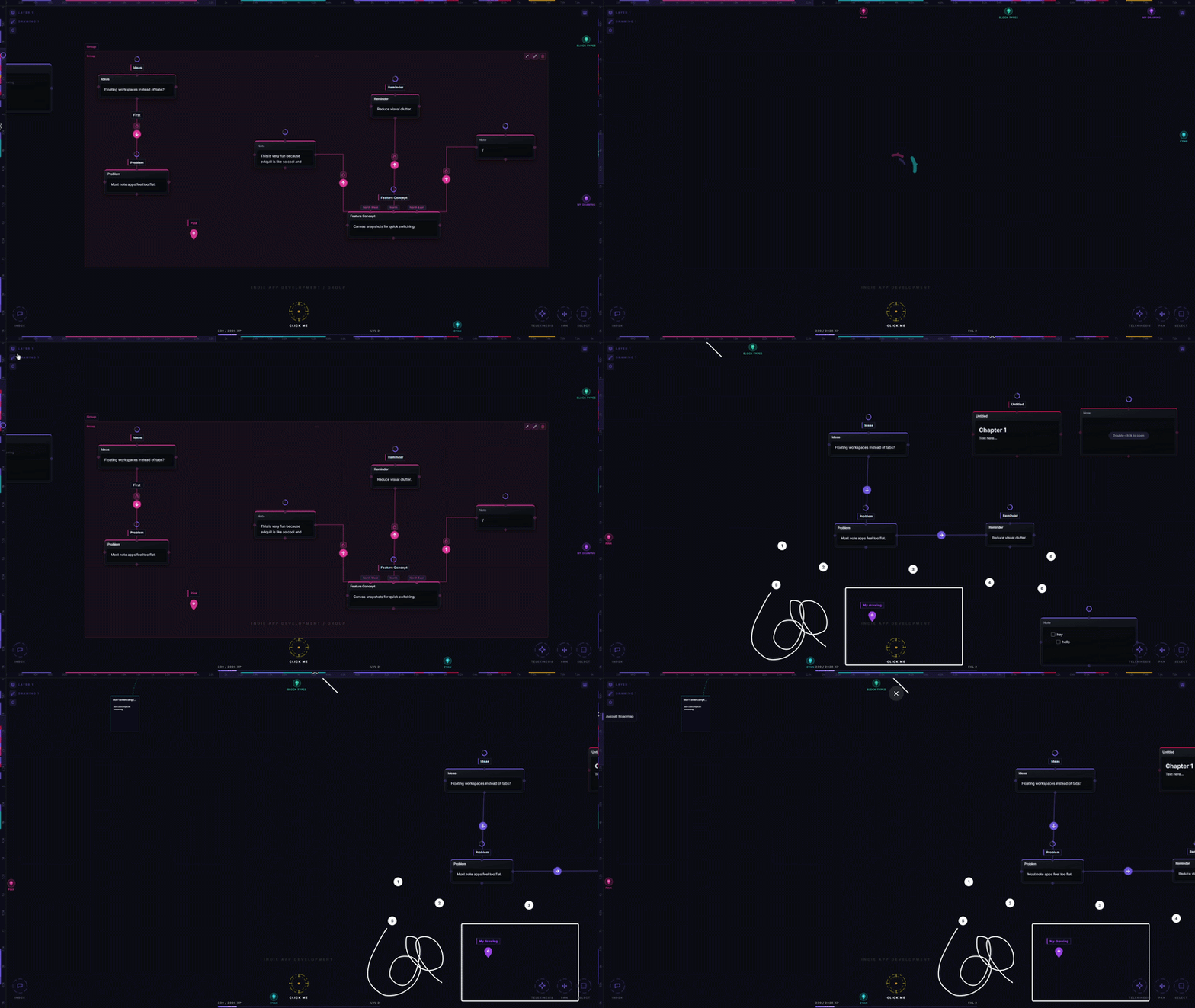
Along the top and left edges of the canvas sits a thin pair of rulers, one for each axis. At a glance they look like the rulers in any design tool — tick marks, coordinate labels, a highlighted band showing your current viewport. But they're doing more than measuring.
Every block on your canvas leaves a small mark on both rulers — a thin colored strip at the position where that block lives along the X or Y axis. Scroll across a dense cluster of notes and you'll see the marks overlap and thicken. Scroll across empty space and the ruler goes quiet. You can read the shape of your canvas's content just from the rulers alone, without ever looking at the canvas itself.
Blocks that belong to the same group collapse into a single combined marker, so a cluster of fifteen related notes reads as one mark instead of fifteen overlapping slivers. The marker closest to your current viewport is always drawn on top, so the ruler stays legible even when your whole canvas is packed edge to edge.
Click, drag, jump
The ruler isn't just a readout — it's a navigation surface. Click anywhere on the horizontal ruler and the canvas snaps you to that X position, holding your current vertical position steady. Same thing on the vertical ruler, but for Y. Click and drag instead, and you scrub continuously along that axis, watching the viewport band slide across the ruler in real time.
This is the part that changes how you think about the canvas. Instead of zooming out to see everything, then zooming back in on the thing you wanted, you just glance at the ruler, spot the cluster of marks you're after, and click. One motion gets you there.
Hover over a marker before you click and a small tooltip lists the title of every block at that position. Tap on a marker that represents more than one block and a searchable jump menu opens — type a few letters and it ranks matching blocks by relevance, with a live preview of each one's content as you hover the list. Pick one and the canvas pans straight to it.
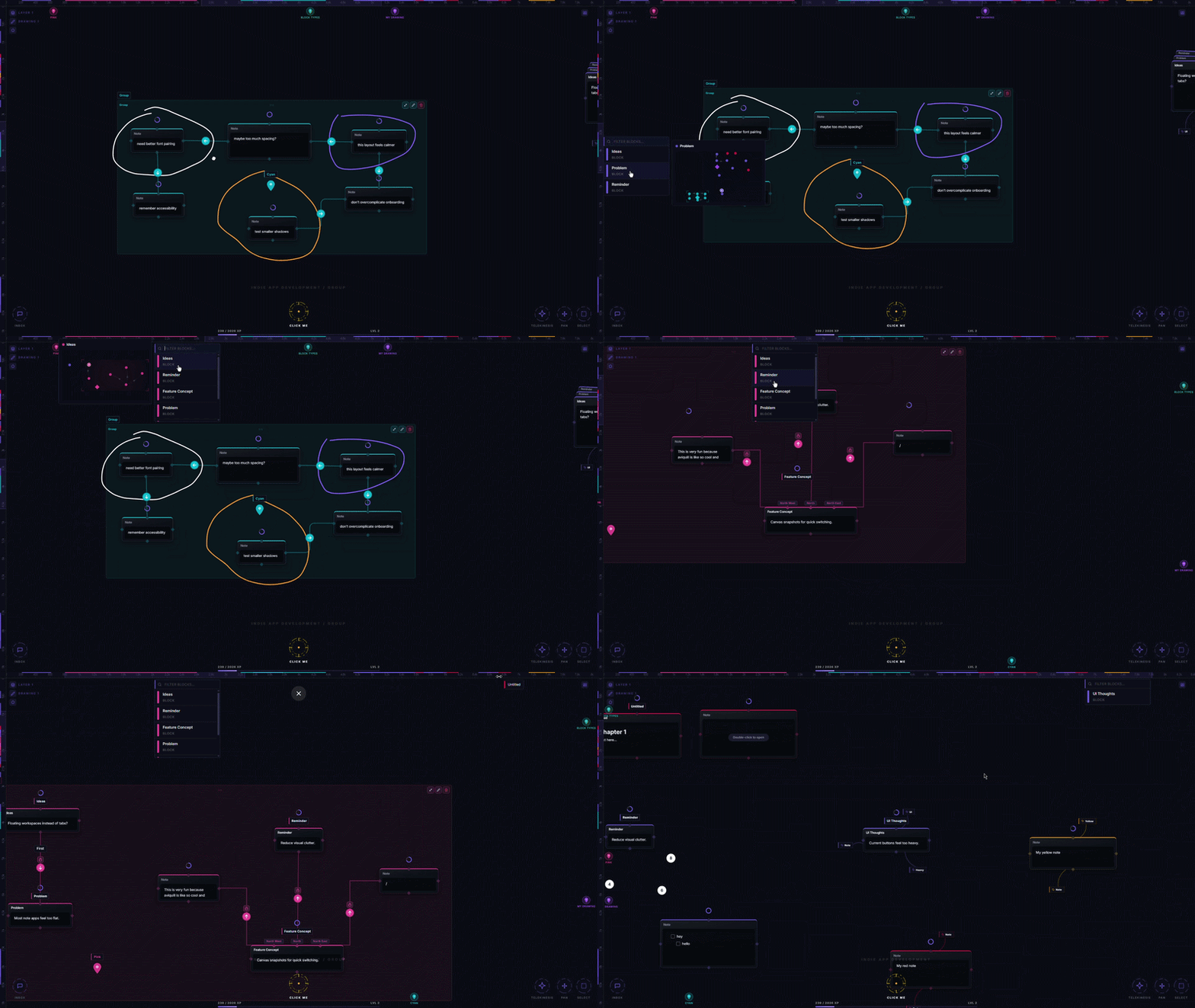
The ruler turns "where did I put that?" into a glance and a click, instead of a minute of scrolling and guessing.
Pan mode: when one axis isn't enough
Sometimes you don't want to jump along a single axis — you want to leap diagonally, across both X and Y at once, the way you'd drag a viewfinder across a map. That's what happens when you start dragging on a ruler and keep pulling past its edge, into the corner where the two rulers meet.
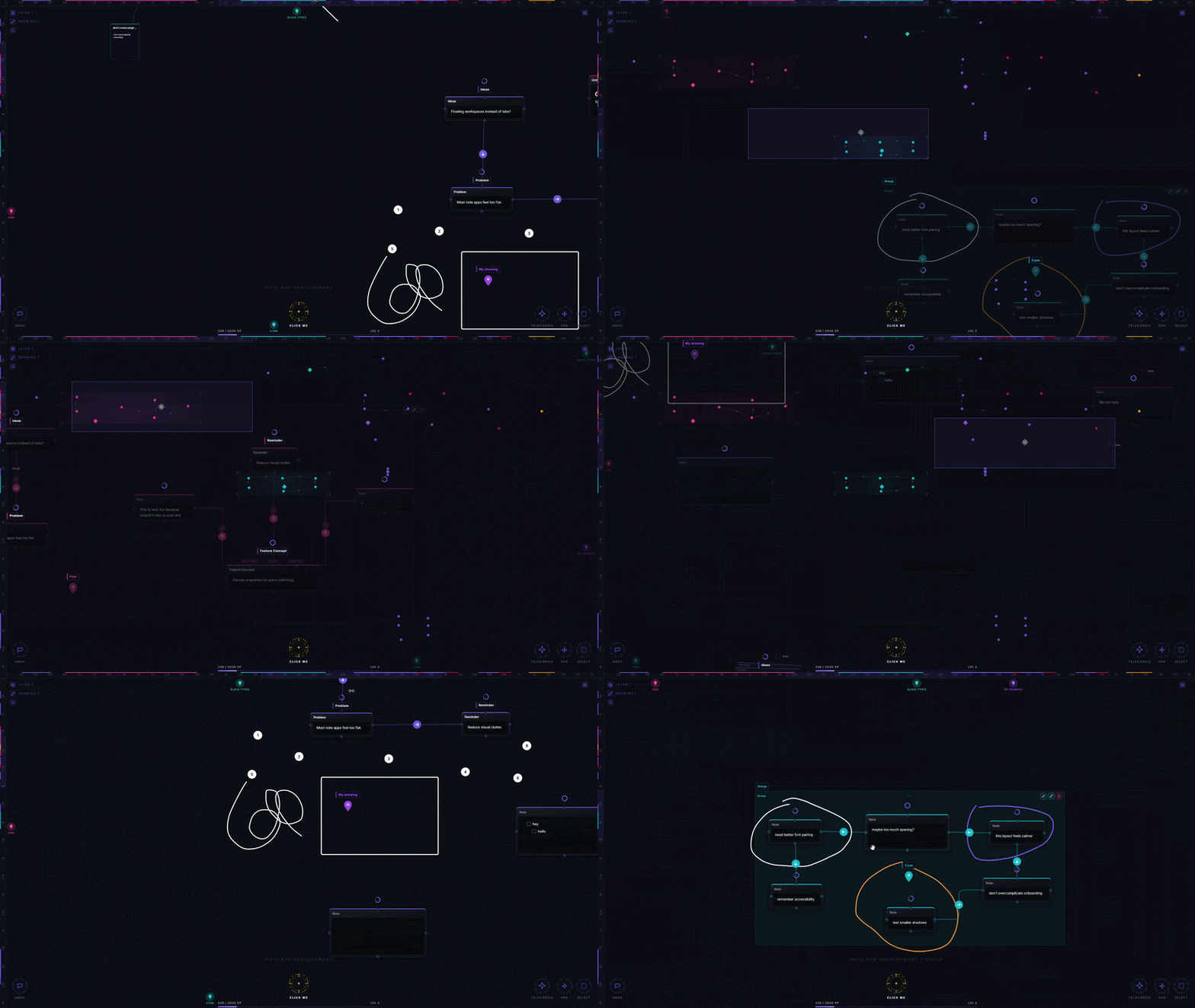
Cross that threshold and the ruler hands off to pan mode: a translucent minimap fades in over the entire canvas, showing your whole workspace at once. Every block becomes a small filled dot in its own color. Groups appear as soft nebula-style glows with bracketed corners marking their boundaries. Threads connecting related blocks draw as faint curved arrows. Checkpoints show up as diamonds, comments as tiny dots — the whole structure of your canvas, compressed into one screen.
Your current viewport is drawn as a highlighted rectangle on top of all of it. Keep dragging anywhere inside that overlay and the rectangle — and your real canvas behind it — follows your cursor in both directions simultaneously. Let go, and the minimap fades back out, leaving you exactly where you aimed.
It's the difference between steering with two separate axes and steering with one continuous motion — useful precision when you need it, free-form movement when you don't.
It follows you into search, too
Aviquill's constellation search mode — the zoomed-out graph view you get when searching across your whole canvas — has its own coordinate space, separate from the regular canvas. The ruler adapts to it automatically. The same ticks, the same markers, the same click-to-jump behavior, just remapped onto search results instead of blocks. Wherever you are in the app, the ruler speaks the same language.
Navigation, not decoration
None of this exists to make the canvas look more like a design tool. It exists because an infinite canvas is only as useful as your ability to move through it — and right now, most tools treat navigation as something you figure out on your own once you've run out of screen.
The ruler is the first answer to that. The minimap is the second. They're both there because "I can't find my own notes" is a real problem that nobody else seems to be taking seriously enough to solve.
Moving through your canvas should feel less like searching, and more like navigating.